How to find a device's MAC address
We use a device's MAC address to apply the right filtering profile to it. Pick your device below.
iPhone or iPad
The device needs to be connected to the Webguard router's Wi-Fi before you start.
- Go to Settings > Wi-Fi.
- Tap the information (i) icon next to your Wi-Fi name.
- Turn off Private Wi-Fi Address.
- Tap Continue at the prompt.
- The MAC address is shown as the Wi-Fi Address.
Android
The device needs to be connected to the Webguard router's Wi-Fi before you start.
- Go to Settings > Network & Internet > Network (or Internet).
- Tap the Settings icon next to your Wi-Fi name.
- Tap Privacy.
- Choose Use device MAC.
- Go back to the previous screen.
- Scroll down to Device MAC address.
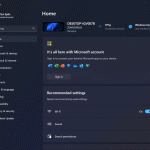
Windows 10 or 11
Make sure the computer is connected to the Webguard Pro network, wired or Wi-Fi.
Wired connection
Wi-Fi connection
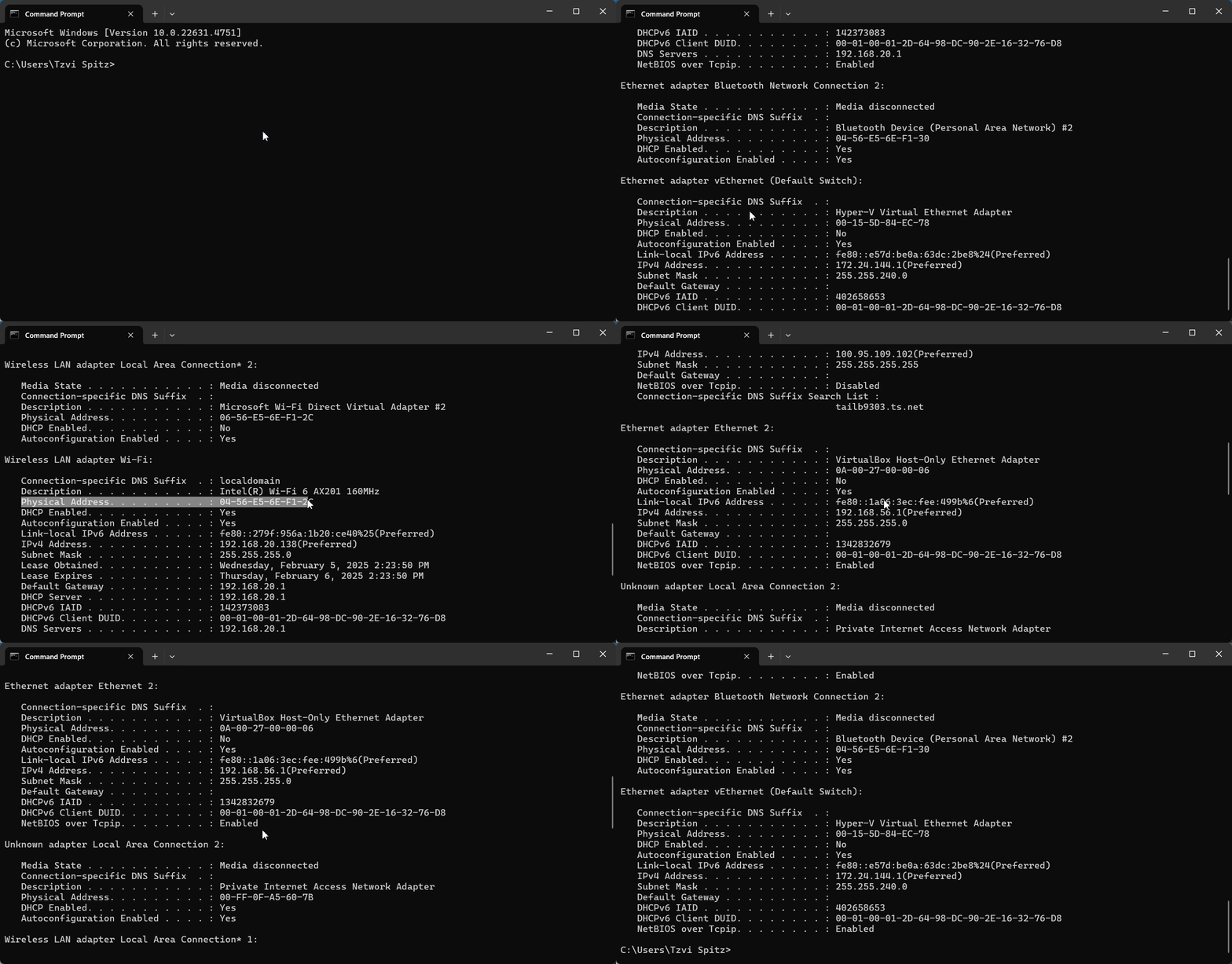
Alternative: Command Prompt
Open Command Prompt and type ipconfig /all.
- Make sure you're reading the MAC address (Physical Address) of the active connection, not another adapter.
- The active one has a real IP address, such as 192.168.1.100 or 192.168.8.100.